Blocked dates are useful when your property is unavailable due to maintenance, personal stays, renovations, seasonal closures, or any other reason you do not want to receive bookings during a specific period. Once dates are blocked, they will no longer be available for new bookings.
There are two ways to block unavailable dates in Zeevou. Both options create the same type of blocked period.
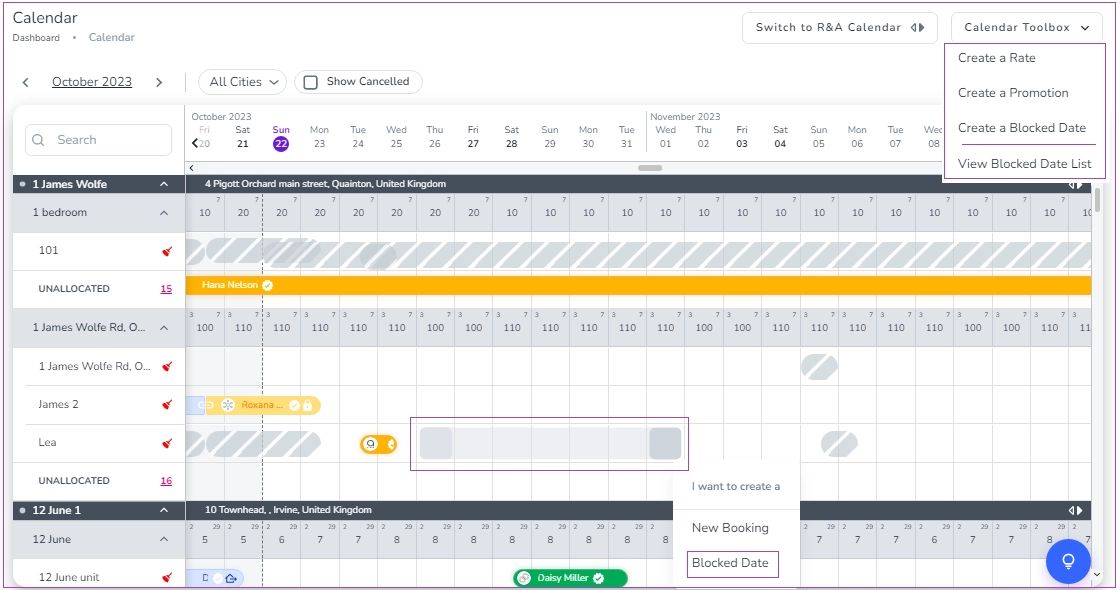
From the Booking Calendar
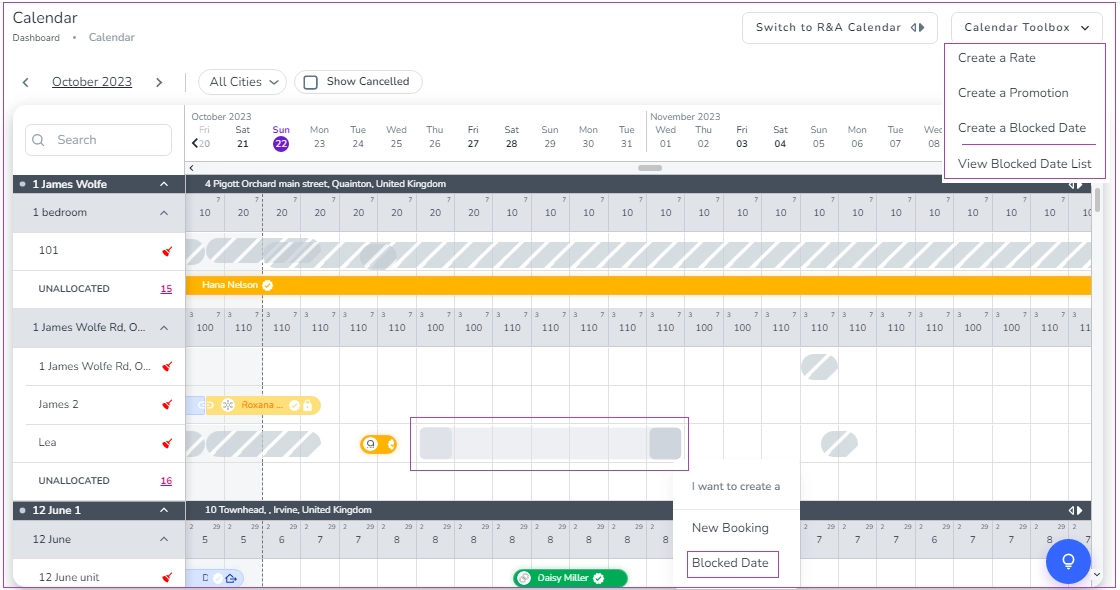
From the Calendar Toolbox
Use this option when you are already viewing your calendar and want to quickly make specific dates unavailable.
Go to Calendar from the main menu.
Select the relevant Property, Unit Type, or Unit.
Drag your cursor across the dates you want to block.
Choose Create a Blocked Date.
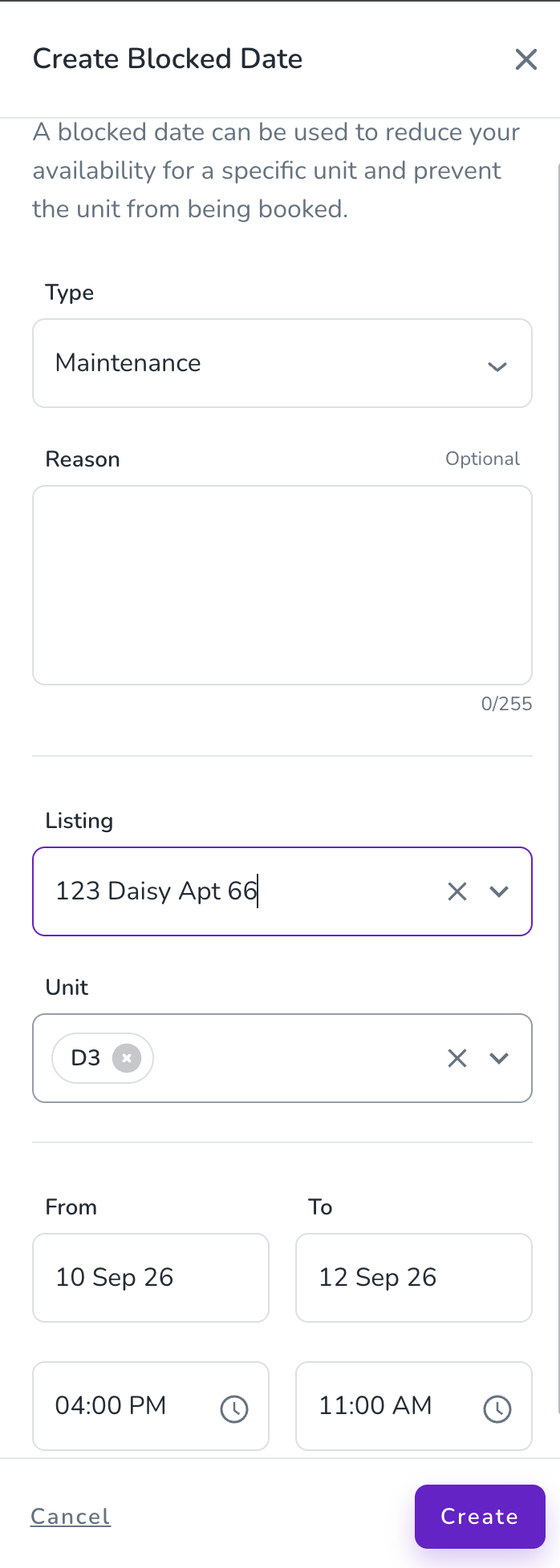
Enter the required details:
Unit/Unit Type: Select where the block should apply.
Date Range: Choose the unavailable period.
Block Type: Select the reason for blocking the dates.
Description: Add any additional notes for your reference.
Click Create.
Go to the Booking Calendar page.
Open Calendar Toolbox at the top right.
Select Create a Blocked Date from the dropdown menu.
Enter the required details:
Unit/Unit Type: Select where the block should apply.
Date Range: Choose the unavailable period.
Block Type: Select the reason for blocking the dates.
Description: Add any additional notes for your reference.
Click Create.
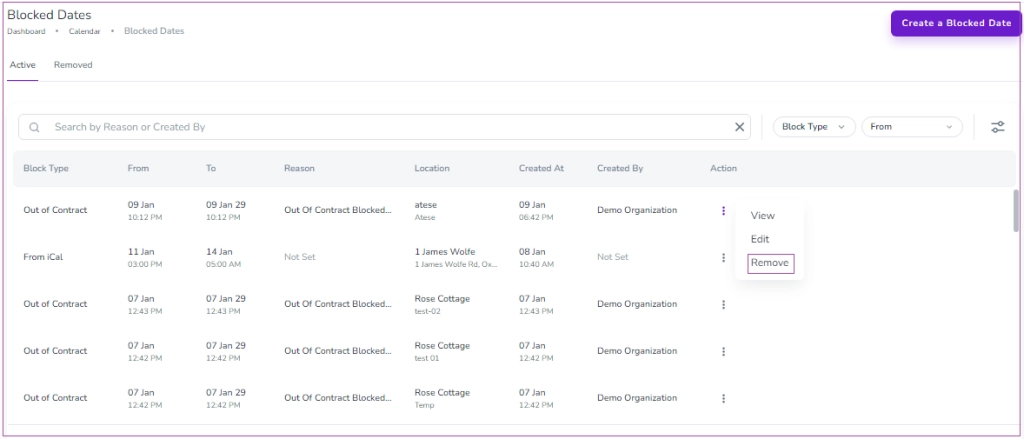
In the blocked dates list, click the ⋮ (three dots) to:
View - Full details by navigating to Calendar → Calendar Toolbox → View Blocked Date List
Filter by: Block Type | Date Range | Reason | Location | Created At/By
Edit - Change dates or info
Remove - Delete the block
Note: iCal-imported blocks can only be viewed and removed (edit them in the source system).
To remove the blocked dates and make your property available, there are two ways in app.zeevou.com:
Option 1:
Go to Booking Calendar.
Click on Blocked Dates.
A drawer opens in which you can click on Remove.
Option 2:
Go to Booking Calendar.
Click on Calendar Toolbox.
Select View Blocked Date List.
Click on the three dots of your blocked date and select Remove.
Switch to the Removed tab to see deletion history (view-only).
Once you have managed your blocked dates, you can continue with creating your booking restrictions.
