A refund is the process of returning money to a guest. You can manage refunds directly from the Finance tab of your Booking Overview.
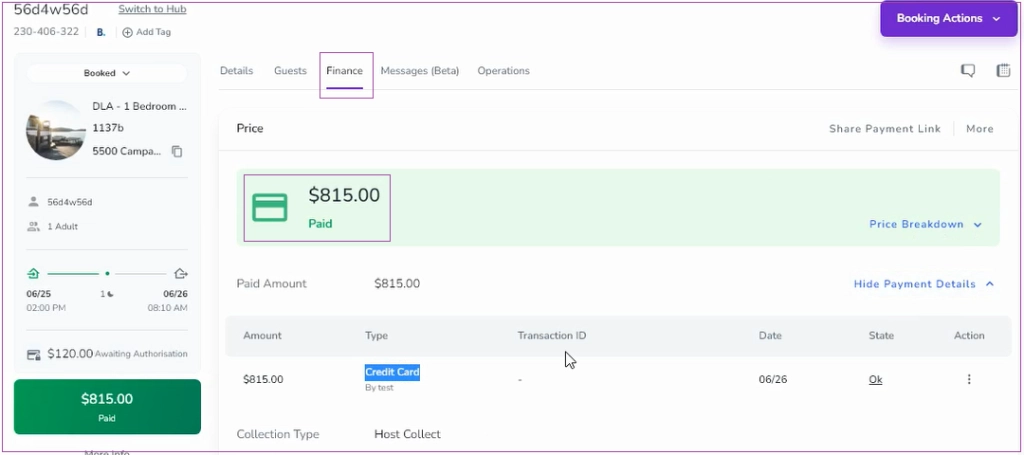
Go to the Refund card and click Refund.
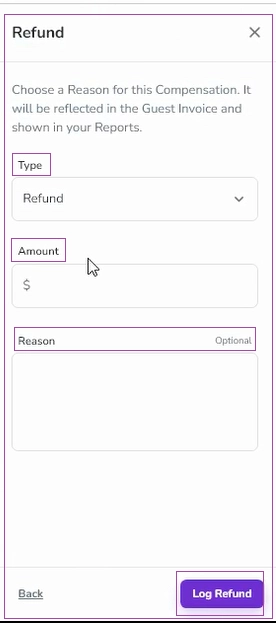
In the window that opens, select:
Refund Type (default is Refund; you can select from the dropdown or click + Add Refund Type to create a new type)
Amount
Reason (optional)
Click Log Refund.
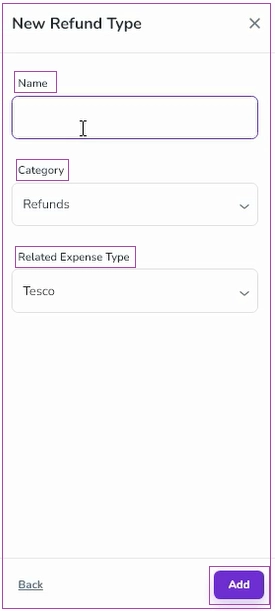
Adding a New Refund Type:
Enter the name, select Category, and Related Expense Type, then click Add.
Step 2: Proceed to Payment
After logging the refund, a window opens giving three options:
Refund now through Stripe
Process Refund Manually
Skip Payment
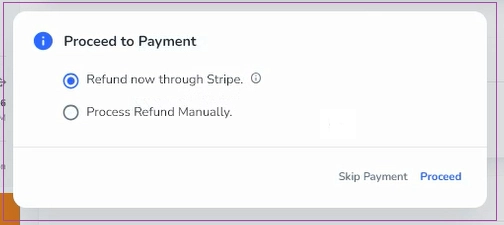
Skip Payment: Refund is added to the Total Price, marking the status as Overpaid, without changing Total Paid.
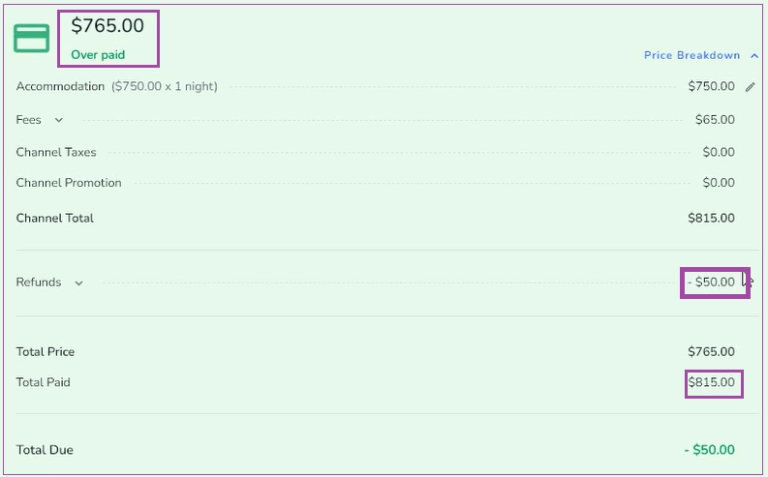
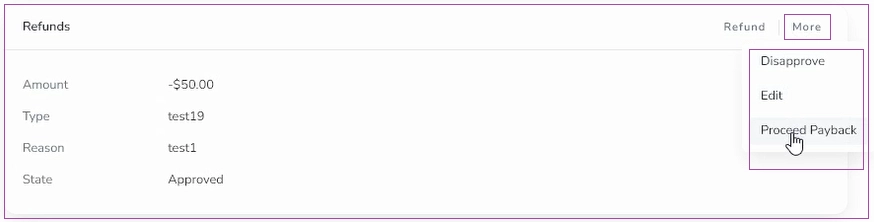
Proceed to Payment: Click More → Proceed Payback, then follow the steps to refund via Stripe or Manually, and click Proceed.
If you click Skip Payment, the refund will add to the Total Price. Then, the Total Price status becomes Overpaid and the Total Paid does not change.
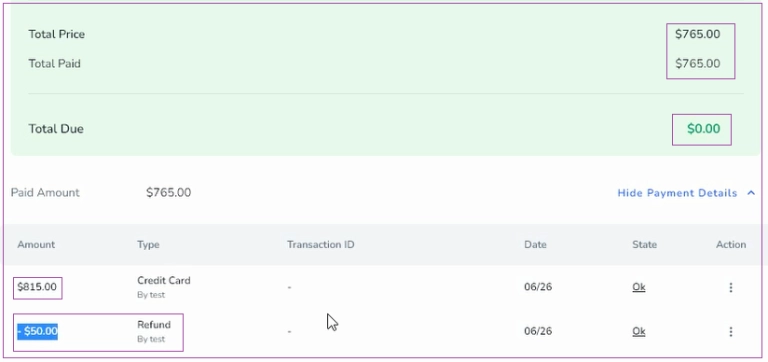
The Refund Payment Report is displayed under Paid Amount.
The Total Paid in the Price Breakdown updates automatically after payment.
Note 1: The type is set as Refund by default, so you can click its arrow and select from the drop-down menu or click + Add Refund Type. Then a window will open in which you can insert the name, select Category, and Related Expense Type. Finally, click Add.
By following the steps mentioned above, you can easily refund your paid booking through the designated process, ensuring a seamless experience for managing your refunds.
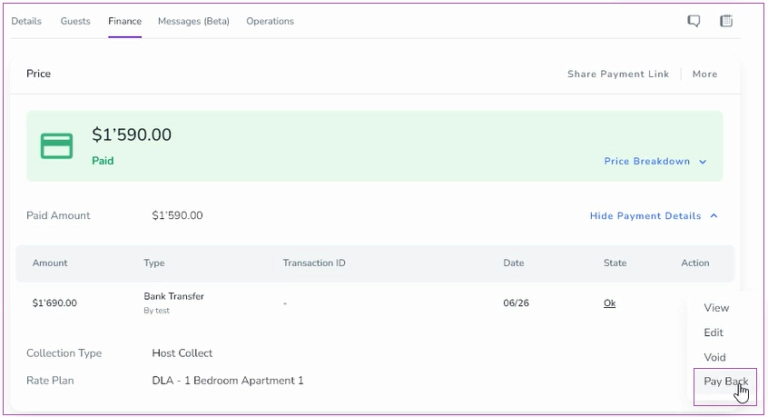
A payback is used when a booking has been overpaid. When there is an Overpaid amount in the Price Breakdown (The logged payment is more than the Unpaid amount),
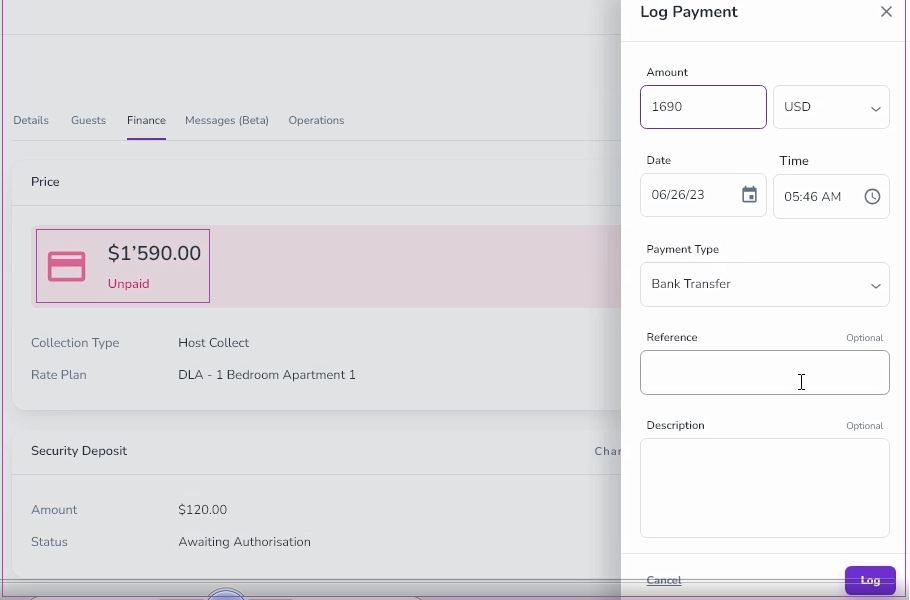
you can click the three dots and select Pay Back.
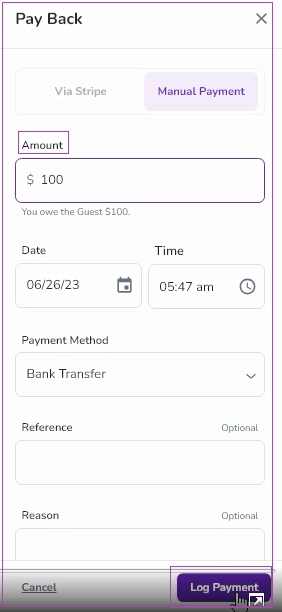
Then, a drawer opens in which you can insert the owed amount of the Guest payment and click Log Payment.
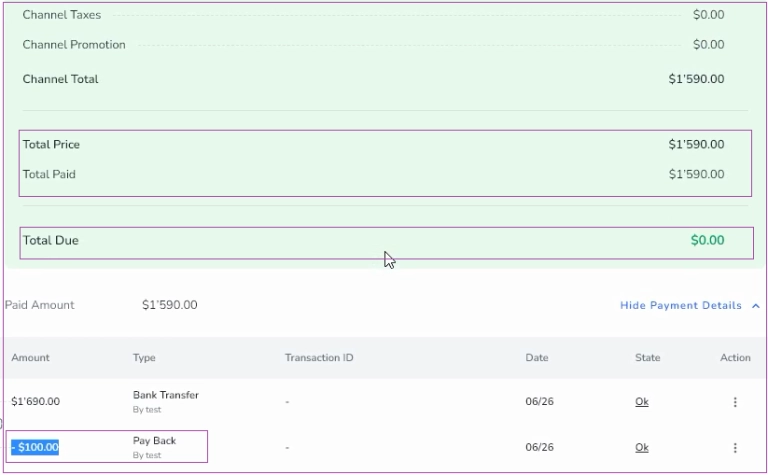
Then, you can view the Pay Back report in the Price Breakdown.
Refund: Used when you need to return money to the guest, typically due to cancellations or issues with the booking.
Payback: Used when there's an overpayment, and you need to adjust the guest’s balance to reflect the correct total.
